
Free Shipping available on orders $299 & up!Shop our Specials»
  • Business Icon For Business & More icon arrow
    • Creative, Production & PostCreative, Production & Post
    • Corporate & EnterpriseCorporate & Enterprise
    • Higher EducationHigher Education
    • State, Local & K-12 EducationState, Local & K-12 Education
    • House of WorshipHouse of Worship
    • Systems IntegratorSystems Integrator
    • HealthcareHealthcare
    • Federal, State & Local GovernmentFederal, State & Local Government
    • Join Today!

      Already registered? Sign In

  • Region: Canada icon arrow
    • Select your preferredcountry / region:

    • USA RegionUSA + International
    • Canada RegionOWC Canada

    • Experience local shipping options and optimized product inventory for your region.

  • Phone Icon1-800-275-4576
  • Intl: 1-815-338-8685
MacSales.com Powered By OWC
Site Search
  • Blog
  • Support
  • Account
    • Hello, Sign In
    • My Account
    • Order Status
    • Write A Review
    • Warranty & Returns
  • Cart
MacSales.com Powered By OWC
  • Support
  • Chat Contact
  • Account
    • Hello, Sign In
    • My Account
    • Order Status
    • Write A Review
    • Warranty & Returns
  • Cart
  • Specials & Featured
  • Rocket Yard Blog
  • Chat
  • Support
      • Shop All
        • Internal Drives
        • External Drives
        • Apple & Macs
        • Docks & Connectivity
        • Cards & Readers
        • Batteries
        • Software & Apps
        • Cables & Adapters
        • Memory
        • PCIe Expansion
        • Specials & Featured

        MacTheRipper

        Converting your DVDs to AVI files using HardBrake


        MacTheRipper

        Begin by downloading MacTheRipper, a freeware DVD copy utility. You will use this program to duplicate your commercial DVDs onto your hard drive.
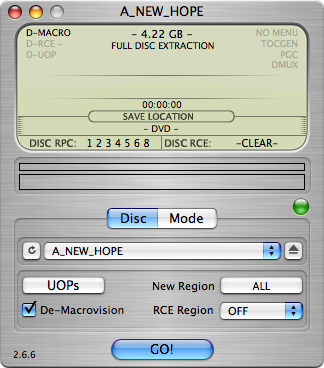

        Once you open MacTheRipper, it will detect the DVD in the drive and prescan it. You'll need to select a location to save the disk copy to, and also select a Region (it will warn you if you select a Region that is not possible). Generally, setting it to "OFF" works.

        Once the DVD is copied, you may quit MacTheRipper.



        Download HandBrake and open it. You will be presented with the screen below.
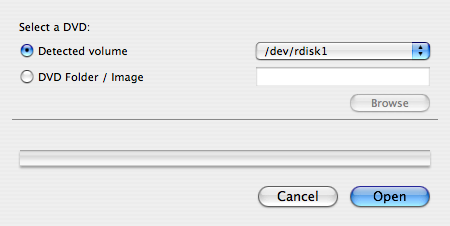

        Since you have used MacTheRipper to copy the DVD to your hard drive, click on the DVD Folder / Image button and browse to the folder you copied the DVD to. Then, click open.
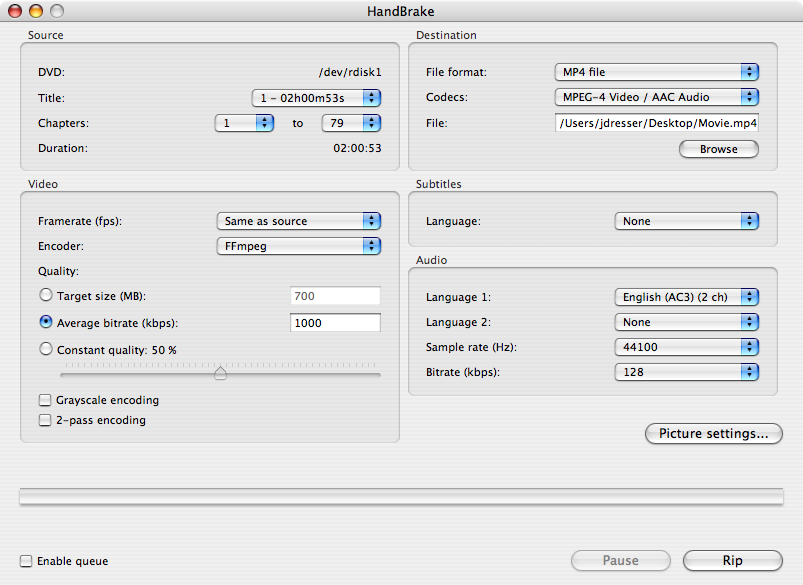

        Handbrake will open to this screen. You can adjust the options if you wish, but the settings below are what work perfectly with the AL Tech MediaGate MG-35 drive we are demonstrating this with. Simply click on the popup menus to change the settings to match below.

        Choose which title to copy:
        (Select the movie - it's the longest usually)
        Choose which encoder to use:
        (Select XviD)
        Choose the video format:
        (AVI files work with the MediaGate drive)
        Choose the type of compression:
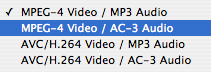
        (MPEG-4 / audio - your choice)

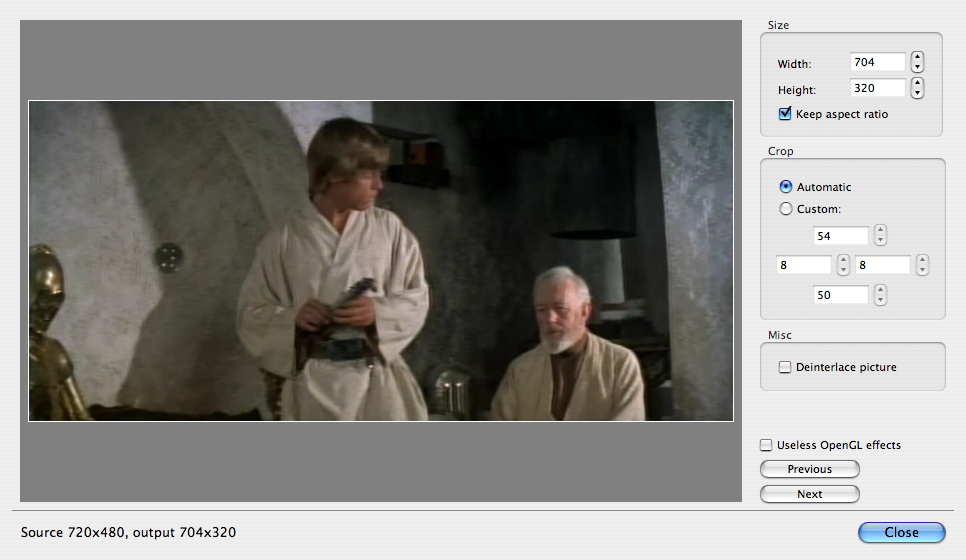
        The bottom right button says "Picture Settings". Click on it, and this window will open. You can adjust the dimensions to your needs, but be aware that incorrect settings will cause the picture to look stretched, or squashed. The default settings will look correct - so don't deviate from them without experimenting.
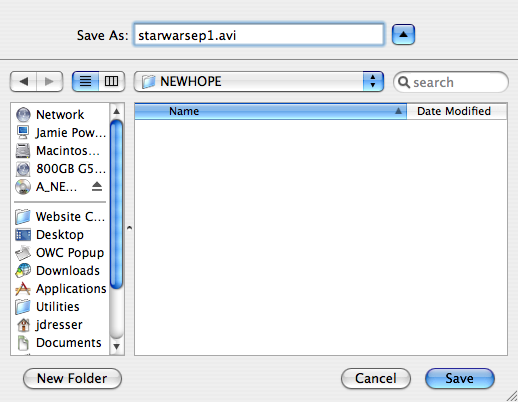

        Click on the Rip button, and this save dialog box will appear. Choose the location you want to save your movie to, and type in a name for the file, and be sure to use the .avi extension at the end. Click Save.
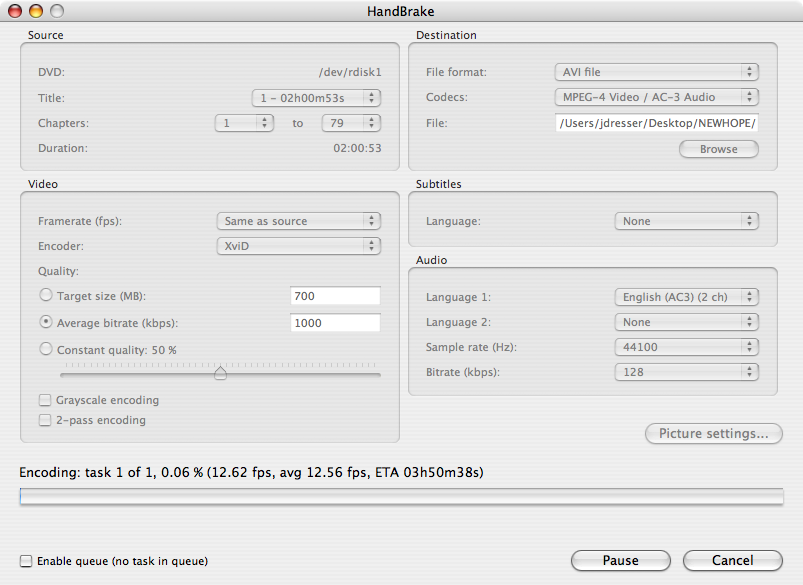

        HandBrake will then commence the rip and be running for a while. Quite a while as you can see here (nearly 4 hours for a 2 hour movie). A fast G5 will be able to perform this task at a 1:1 ratio, or even faster. Quad G5s have been reported ripping at 85+fps. Not too bad! :>) Good luck!

        Helpful Links
        • About Us
        • DIY Install Videos
        • Join our Affiliate Network
        • Where to Buy (opens in a new tab)
        • Accessibility Statement
        • Sustainability is Good Business
        • Join the MacSales.com Team
        • Media+Newsroom
        • Privacy Promise
        • MacSales.com for Business
        Join the MacSales.com Newsletter

        Join hundreds-of-thousands of tech enthusiasts across the planet and gain access to specials, clearance, and holiday savings on the OWC upgrades, drives, and docks everyone loves.

        Newsletter Subscription

        Please enter a valid email address.

        • bbb
        © 2000-2026 Other World Computing, Inc., All Rights Reserved. Site Terms Guest ID:
        Your Privacy Choices
        This item has been added to your cart