Free Shipping available on orders $299 & up!Shop our Specials»
  • Business Icon For Business & More icon arrow
    • Creative, Production & PostCreative, Production & Post
    • Corporate & EnterpriseCorporate & Enterprise
    • Higher EducationHigher Education
    • State, Local & K-12 EducationState, Local & K-12 Education
    • House of WorshipHouse of Worship
    • Systems IntegratorSystems Integrator
    • HealthcareHealthcare
    • Federal, State & Local GovernmentFederal, State & Local Government
    • Join Today!

      Already registered? Sign In

  • Region: Canada icon arrow
    • Select your preferredcountry / region:

    • USA RegionUSA + International
    • Canada RegionOWC Canada

    • Experience local shipping options and optimized product inventory for your region.

  • Phone Icon1-800-275-4576
  • Intl: 1-815-338-8685
MacSales.com Powered By OWC
Site Search
  • Blog
  • Support
  • Account
    • Hello, Sign In
    • My Account
    • Order Status
    • Write A Review
    • Warranty & Returns
  • Cart
MacSales.com Powered By OWC
  • Support
  • Chat Contact
  • Account
    • Hello, Sign In
    • My Account
    • Order Status
    • Write A Review
    • Warranty & Returns
  • Cart
  • Specials & Featured
  • Rocket Yard Blog
  • Chat
  • Support
      • Shop All
        • Internal Drives
        • External Drives
        • Apple & Macs
        • Docks & Connectivity
        • Cards & Readers
        • Batteries
        • Software & Apps
        • Cables & Adapters
        • Memory
        • PCIe Expansion
        • Specials & Featured

        How to create .iso files from your already duplicated DVDs (or not copy protected DVDs) for use with the AL Tech MediaGate MG-35 drive.

        (for duplicating copy protected DVD instructions, visit this page)
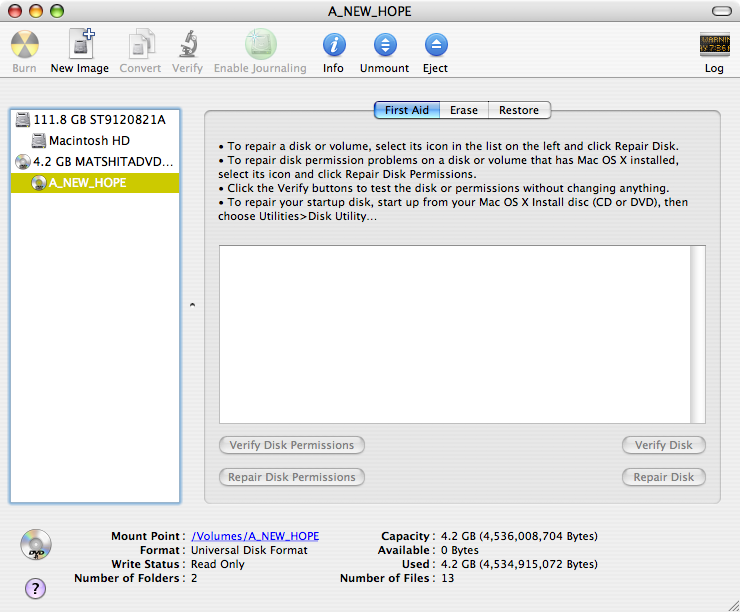

        Insert your ALREADY DECRYPTED DVD into your DVD drive and open Disk Utility (Applications/Utilities/Disk Utility). Once it's open, select the DVD you just inserted and click on it in the list to the left as shown above.
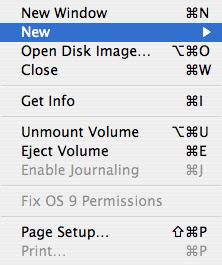

        Once the DVD you want to copy is highlighted, go to the file menu and select "New Disk Image from Disk x" (x is a variable depending on your computer - just be sure you have selected the DVD you want to create an ISO from in the list correctly in the first step.
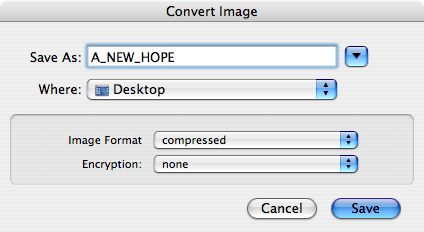
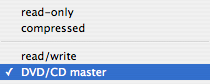
        The Convert Image dialog box will pop up. Under Image Format, choose "DVD/CD master" Click Save
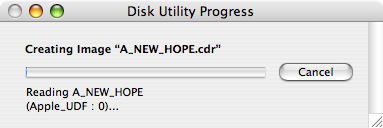

        The progress box will pop up showing the status.
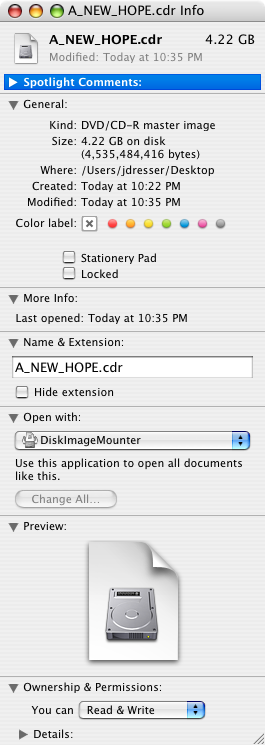


        Once the image has completed, locate the file on your computer and click on it. Press Command - I (Get Info) and the info box above will appear. Under "Name & Extension", change the file extension to .iso - yes, that's it - change it. .cdr IS an ISO format!
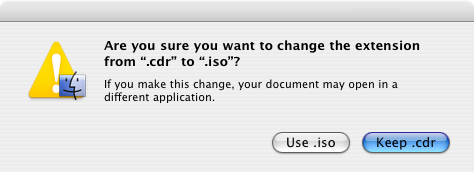

        Mac OS X will confirm that you want to do this change. You most certainly do want to. :>)

        Helpful Links
        • About Us
        • DIY Install Videos
        • Join our Affiliate Network
        • Where to Buy (opens in a new tab)
        • Accessibility Statement
        • Sustainability is Good Business
        • Join the MacSales.com Team
        • Media+Newsroom
        • Privacy Promise
        • MacSales.com for Business
        Join the MacSales.com Newsletter

        Join hundreds-of-thousands of tech enthusiasts across the planet and gain access to specials, clearance, and holiday savings on the OWC upgrades, drives, and docks everyone loves.

        Newsletter Subscription

        Please enter a valid email address.

        • bbb
        © 2000-2026 Other World Computing, Inc., All Rights Reserved. Site Terms Guest ID:
        Your Privacy Choices
        This item has been added to your cart