Free Shipping available on orders $299 & up!Shop our Specials»
  • Business Icon For Business & More icon arrow
    • Creative, Production & PostCreative, Production & Post
    • Corporate & EnterpriseCorporate & Enterprise
    • Higher EducationHigher Education
    • State, Local & K-12 EducationState, Local & K-12 Education
    • House of WorshipHouse of Worship
    • Systems IntegratorSystems Integrator
    • HealthcareHealthcare
    • Federal, State & Local GovernmentFederal, State & Local Government
    • Join Today!

      Already registered? Sign In

  • Region: Canada icon arrow
    • Select your preferredcountry / region:

    • USA RegionUSA + International
    • Canada RegionOWC Canada

    • Experience local shipping options and optimized product inventory for your region.

  • Phone Icon1-800-275-4576
  • Intl: 1-815-338-8685
MacSales.com Powered By OWC
Site Search
  • Blog
  • Support
  • Account
    • Hello, Sign In
    • My Account
    • Order Status
    • Write A Review
    • Warranty & Returns
  • Cart
MacSales.com Powered By OWC
  • Support
  • Chat Contact
  • Account
    • Hello, Sign In
    • My Account
    • Order Status
    • Write A Review
    • Warranty & Returns
  • Cart
  • Specials & Featured
  • Rocket Yard Blog
  • Chat
  • Support
      • Shop All
        • Internal Drives
        • External Drives
        • Apple & Macs
        • Docks & Connectivity
        • Cards & Readers
        • Batteries
        • Software & Apps
        • Cables & Adapters
        • Memory
        • PCIe Expansion
        • Specials & Featured
        ZIF Configuration Instructions
        Installing your new OWC Mercury G3 or G4 ZIF in the Blue & White G3 or G4 "Yikes" Power Macintosh system
        Page 1
        If you are installing a G4 processor into your Blue & White G3 system, you will need to unlock the ROM to allow the use of a G4 processor. Please download this file and follow the included instructions to unlock the ROM.
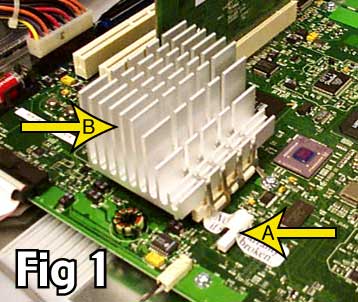
        When you upgrade your Apple B&W G3 or G4 "Yikes" with a fast OWC Mercury ZIF (Zero Insertion Force) processor, you will need to change your jumper settings. Apple's B&W G3 / G4 "Yikes" motherboards have a series of 11 pins in a line (Fig.1, Arrow A). These pins control the bus and clock speeds of your computer. To change the jumper settings and your new OWC Mercury ZIF processor, please follow the steps below.

        NOTE: The jumpers are "sealed" under a label, and if this label is removed it will void your warranty! Please note that any modifications you make to your Macintosh are made at your own risk.

        A: White (may be different) stock jumper block --- B: G3 processor with heat sink

        Processor Removal and Installation

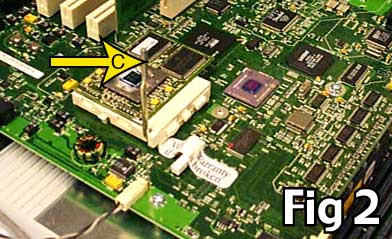
        C: ZIF release handle

        STEP 1: Locate the G3 heat sink (Fig. 1, Arrow B). Take off the heat sink clamp. Lift the heat sink and place it aside.
        NOTE - You do not need to remove the green ground wire.
        Lift the ZIF release handle (Fig. 2, Arrow C) up until it stops. (Remember how the ZIF chip is installed, as you will have to put in the new one in the same way.)


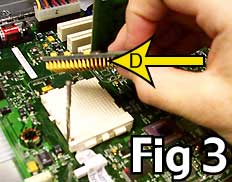
        D: G3 ZIF Processor

        STEP 2:
        Remove the old ZIF processor. (Fig.3, Arrow D). From this point on, reverse the steps you have taken. Place the new chip in exactly how the old was. (There is a pin missing on one of the corners of the chip to insure you place the chip in the correct postion.) The new ZIF chip will slide right into it's place when the pins are lined up.
        NOTE: Please DO NOT force the new chip into its slot. You might damage the pins.

        Once your new OWC Mercury processor is fully seated in the ZIF socket, push the ZIF release handle down until it locks. Place the heat sink back on top the processor and lock the heat sink clamp into place.

        Processor installation is complete. please continue on to configure the jumper settings for your new OWC Mercury ZIF processor

        Continue--->
        Helpful Links
        • About Us
        • DIY Install Videos
        • Join our Affiliate Network
        • Where to Buy (opens in a new tab)
        • Accessibility Statement
        • Sustainability is Good Business
        • Join the MacSales.com Team
        • Media+Newsroom
        • Privacy Promise
        • MacSales.com for Business
        Join the MacSales.com Newsletter

        Join hundreds-of-thousands of tech enthusiasts across the planet and gain access to specials, clearance, and holiday savings on the OWC upgrades, drives, and docks everyone loves.

        Newsletter Subscription

        Please enter a valid email address.

        • bbb
        © 2000-2026 Other World Computing, Inc., All Rights Reserved. Site Terms Guest ID:
        Your Privacy Choices
        This item has been added to your cart