Free Shipping available on orders $299 & up!Shop our Specials»
  • Business Icon For Business & More icon arrow
    • Creative, Production & PostCreative, Production & Post
    • Corporate & EnterpriseCorporate & Enterprise
    • Higher EducationHigher Education
    • State, Local & K-12 EducationState, Local & K-12 Education
    • House of WorshipHouse of Worship
    • Systems IntegratorSystems Integrator
    • HealthcareHealthcare
    • Federal, State & Local GovernmentFederal, State & Local Government
    • Join Today!

      Already registered? Sign In

  • Region: Canada icon arrow
    • Select your preferredcountry / region:

    • USA RegionUSA + International
    • Canada RegionOWC Canada

    • Experience local shipping options and optimized product inventory for your region.

  • Phone Icon1-800-275-4576
  • Intl: 1-815-338-8685
MacSales.com Powered By OWC
Site Search
  • Blog
  • Support
  • Account
    • Hello, Sign In
    • My Account
    • Order Status
    • Write A Review
    • Warranty & Returns
  • Cart
MacSales.com Powered By OWC
  • Support
  • Chat Contact
  • Account
    • Hello, Sign In
    • My Account
    • Order Status
    • Write A Review
    • Warranty & Returns
  • Cart
  • Specials & Featured
  • Rocket Yard Blog
  • Chat
  • Support
      • Shop All
        • Internal Drives
        • External Drives
        • Apple & Macs
        • Docks & Connectivity
        • Cards & Readers
        • Batteries
        • Software & Apps
        • Cables & Adapters
        • Memory
        • PCIe Expansion
        • Specials & Featured
        To initalize your new FireWire drive under Mac OS 9.1 or later, simply plug your drive into your computer. Upon mounting the new drive, you will see this dialog box.
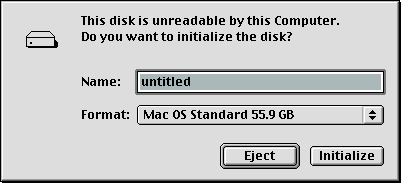
        Type in the name for your new drive, choose either Mac OS 9 standard or extended file system (HFS or HFS+) and click initialize. Your new drive will mount on the desktop.

        If you need to erase your drive in the future, simply highlight the drive you wish to erase and select "Erase Disk" from the special menu in the finder. Any other partitioning, or reformatting of the drive must be done using a 3rd party drive formatting software, such as Intech Hard Disk SpeedTools or using Disk Utility under Mac OS X.

        Helpful Links
        • About Us
        • DIY Install Videos
        • Join our Affiliate Network
        • Where to Buy (opens in a new tab)
        • Accessibility Statement
        • Sustainability is Good Business
        • Join the MacSales.com Team
        • Media+Newsroom
        • Privacy Promise
        • MacSales.com for Business
        Join the MacSales.com Newsletter

        Join hundreds-of-thousands of tech enthusiasts across the planet and gain access to specials, clearance, and holiday savings on the OWC upgrades, drives, and docks everyone loves.

        Newsletter Subscription

        Please enter a valid email address.

        • bbb
        © 2000-2026 Other World Computing, Inc., All Rights Reserved. Site Terms Guest ID:
        Your Privacy Choices
        This item has been added to your cart