Free Shipping available on orders $299 & up!Shop our Specials»
  • Business Icon For Business & More icon arrow
    • Creative, Production & PostCreative, Production & Post
    • Corporate & EnterpriseCorporate & Enterprise
    • Higher EducationHigher Education
    • State, Local & K-12 EducationState, Local & K-12 Education
    • House of WorshipHouse of Worship
    • Systems IntegratorSystems Integrator
    • HealthcareHealthcare
    • Federal, State & Local GovernmentFederal, State & Local Government
    • Join Today!

      Already registered? Sign In

  • Region: Canada icon arrow
    • Select your preferredcountry / region:

    • USA RegionUSA + International
    • Canada RegionOWC Canada

    • Experience local shipping options and optimized product inventory for your region.

  • Phone Icon1-800-275-4576
  • Intl: 1-815-338-8685
MacSales.com Powered By OWC
Site Search
  • Blog
  • Support
  • Account
    • Hello, Sign In
    • My Account
    • Order Status
    • Write A Review
    • Warranty & Returns
  • Cart
MacSales.com Powered By OWC
  • Support
  • Chat Contact
  • Account
    • Hello, Sign In
    • My Account
    • Order Status
    • Write A Review
    • Warranty & Returns
  • Cart
  • Specials & Featured
  • Rocket Yard Blog
  • Chat
  • Support
      • Shop All
        • Internal Drives
        • External Drives
        • Apple & Macs
        • Docks & Connectivity
        • Cards & Readers
        • Batteries
        • Software & Apps
        • Cables & Adapters
        • Memory
        • PCIe Expansion
        • Specials & Featured
        Write a Signature under Windows 2000/XP

        In most cases, when a new FireWire or USB hard drive is plugged into Windows 2000 or XP, you will see a wizard appear as soon as you open the Disk Management snap-in. This wizard makes it easy to initialize the drive for use on Windows based systems. In some rare cases, this wizard does not automatically popup. This makes the initialization process more difficult.

        The details below will walk you through the necessary step to manually write a signature to the disk and then begin the initialization process under Windows 2000/XP.
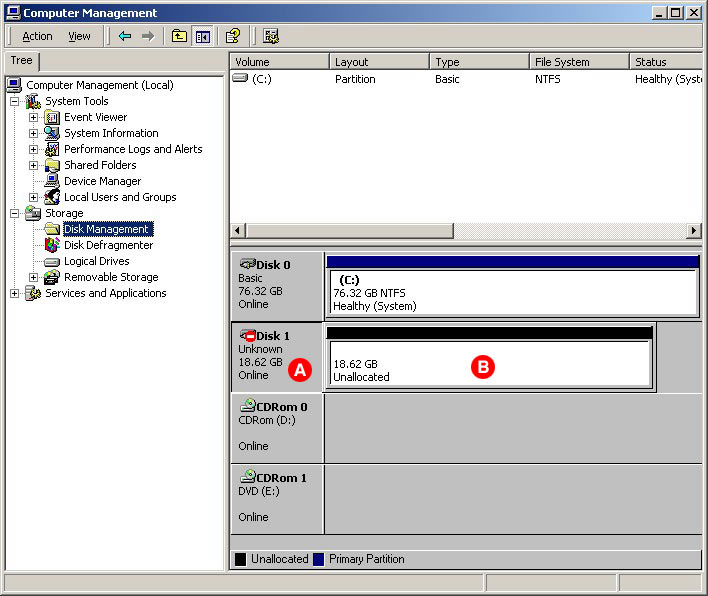
        This screen capture should be similar to what you have on your screen. You should see the Disk 1 labeled Unknown in the bottom right corner of you screen if the Signature Wizard never appeared. Right click on the name portion of the line that contains Disk 1 (the grey label where you see the red caution sign). This spot is marked as location A on the above image. There you will find an option to write a signature.

        Once the signature is written to the disk, right click on location B and chose the option called Create Partition... This will initiate the wizard that will help you initialize the disk. The wizard will walk you through the steps needed. When you have the option, be sure to the partition type, choose Primary Partition. The rest of the procedure is self-explanatory.

        Helpful Links
        • About Us
        • DIY Install Videos
        • Join our Affiliate Network
        • Where to Buy (opens in a new tab)
        • Accessibility Statement
        • Sustainability is Good Business
        • Join the MacSales.com Team
        • Media+Newsroom
        • Privacy Promise
        • MacSales.com for Business
        Join the MacSales.com Newsletter

        Join hundreds-of-thousands of tech enthusiasts across the planet and gain access to specials, clearance, and holiday savings on the OWC upgrades, drives, and docks everyone loves.

        Newsletter Subscription

        Please enter a valid email address.

        • bbb
        © 2000-2026 Other World Computing, Inc., All Rights Reserved. Site Terms Guest ID:
        Your Privacy Choices
        This item has been added to your cart