Free Shipping available on orders $299 & up!Shop our Specials»
  • Business Icon For Business & More icon arrow
    • Creative, Production & PostCreative, Production & Post
    • Corporate & EnterpriseCorporate & Enterprise
    • Higher EducationHigher Education
    • State, Local & K-12 EducationState, Local & K-12 Education
    • House of WorshipHouse of Worship
    • Systems IntegratorSystems Integrator
    • HealthcareHealthcare
    • Federal, State & Local GovernmentFederal, State & Local Government
    • Join Today!

      Already registered? Sign In

  • Region: Canada icon arrow
    • Select your preferredcountry / region:

    • USA RegionUSA + International
    • Canada RegionOWC Canada

    • Experience local shipping options and optimized product inventory for your region.

  • Phone Icon1-800-275-4576
  • Intl: 1-815-338-8685
MacSales.com Powered By OWC
Site Search
  • Blog
  • Support
  • Account
    • Hello, Sign In
    • My Account
    • Order Status
    • Write A Review
    • Warranty & Returns
  • Cart
MacSales.com Powered By OWC
  • Support
  • Chat Contact
  • Account
    • Hello, Sign In
    • My Account
    • Order Status
    • Write A Review
    • Warranty & Returns
  • Cart
  • Specials & Featured
  • Rocket Yard Blog
  • Chat
  • Support
      • Shop All
        • Internal Drives
        • External Drives
        • Apple & Macs
        • Docks & Connectivity
        • Cards & Readers
        • Batteries
        • Software & Apps
        • Cables & Adapters
        • Memory
        • PCIe Expansion
        • Specials & Featured
        ZIF Configuration Instructions
        Installing your new OWC Mercury G3 or G4 ZIF in the Beige G3 Power Macintosh system
        Page 2
        Jumper Setting Configuration

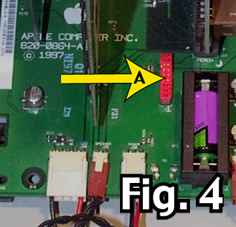
        A: Red stock jumper block


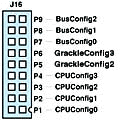
        Each pin has a certain job to do. The illustration above shows what each pin controls.


        The red block (may be a different color on your computer) (Fig.4, Arrow A) is where you configure the pins with jumpers on your G3 motherboard to take advantage of the new OWC Mercury ZIF chip. The red jumper block is Apple's way of setting a configuration for a certain speed.
        Fig 5. shows jumper configurations. Black = Jumper / White = No Jumper

        Tip: A needle nose pliers, tweezers or hemostats work really well for placing the jumpers on the logic board pins.
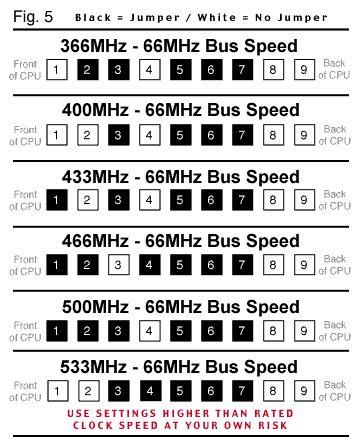

        For more configurations go to the
        Complete Jumper Chart.


        STEP 3: Remove the jumper block off and keep it in a safe place. If you ever want to return your system back to factory stock, you can place the jumper block back onto the logic board.
        Take the provided jumpers and install them in the proper order onto your logic board to configure your new ZIF to the desired speed.

        STEP 4: If you are looking to squeeze top performance out of your new OWC Mercury ZIF chip, you can attempt to clock your CPU even higher than the rated speed of the ZIF chip. Follow the complete jumper chart for different bus speed configurations. We recommend either 66MHz or 83MHz bus speeds.

        STEP 5: Start up your system and install cache controlling software. If you're running Mac OS 9, we recommend using PowerLogix Cache Control software located here, and if you're using Mac OS X, we recommend Ryan Rempel's Cache Control Software located here. You can also use PowerLogix universal CPUDirector software, located here.

        STEP 6: Congratulations! After you have completed configuring the jumpers and checked to see if your computer runs stable, you can close the case, plug what you have back in and enjoy your new Mac!

        NOTE: if your computer will not start up, you may need to reset the CUDA switch, it is a small gray button on the logic board at the top left of the system. It is located next to the PCI slot closest to the edge of the computer. Press the button with a ball point pen for 5 seconds and your system should start up as normal. If you are still unable to start your machine, please contact our tech support department.

        Helpful Links
        • About Us
        • DIY Install Videos
        • Join our Affiliate Network
        • Where to Buy (opens in a new tab)
        • Accessibility Statement
        • Sustainability is Good Business
        • Join the MacSales.com Team
        • Media+Newsroom
        • Privacy Promise
        • MacSales.com for Business
        Join the MacSales.com Newsletter

        Join hundreds-of-thousands of tech enthusiasts across the planet and gain access to specials, clearance, and holiday savings on the OWC upgrades, drives, and docks everyone loves.

        Newsletter Subscription

        Please enter a valid email address.

        • bbb
        © 2000-2026 Other World Computing, Inc., All Rights Reserved. Site Terms Guest ID:
        Your Privacy Choices
        This item has been added to your cart